Maintain Your Desktop: A Guide to Staying Organized and Efficient
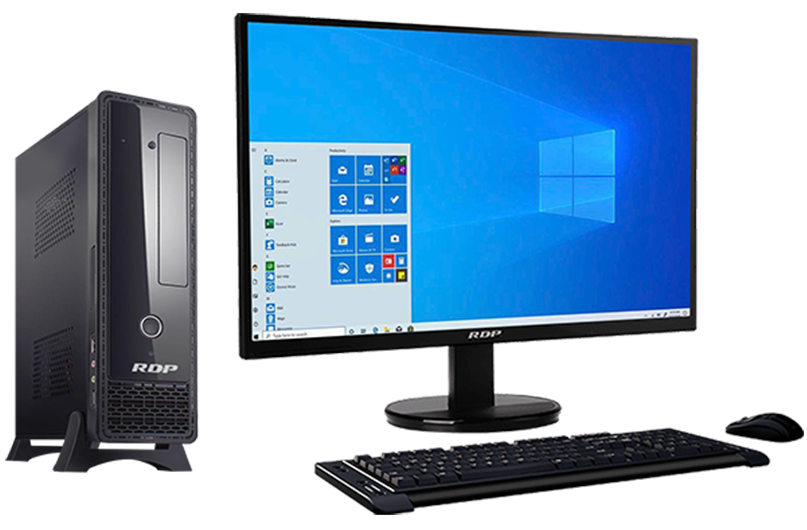
Your desktop is often the heart of your digital workspace, whether you’re a student, a professional, or someone managing personal tasks. A cluttered and disorganized desktop can make it harder to find files, slow down your system, and reduce your productivity. Here’s a comprehensive guide on how to maintain your desktop and keep it functional and visually appealing.

1. Declutter Regularly

One of the easiest ways to maintain your desktop is to regularly review and remove unnecessary files. Here’s how:

  • Sort and Delete: Go through your desktop once a week to delete old files, unused shortcuts, or documents you no longer need.
  • Organize into Folders: Create folders to categorize your files. For example, you can have folders like “Work,” “Personal,” or “Projects.”

2. Use a Consistent Naming System

A good naming convention makes it easier to search for and identify files. Use clear and descriptive names like “ProjectProposal_March2024.docx” instead of vague titles like “NewDocument1.docx.”

3. Optimize Your Desktop Layout

Keep frequently used shortcuts and files easily accessible:

  • Limit Icons: Avoid crowding your desktop with too many icons. Aim to keep only the most essential items visible.
  • Dock and Taskbar: Pin frequently used applications to your dock or taskbar for quick access.

4. Utilize Tools and Widgets

Desktop organization tools can help streamline your workspace:

  • File Managers: Use software like Fences to group and organize desktop icons.
  • Calendars and To-Do Lists: Add widgets or shortcuts to productivity tools for easy task management.

5. Regularly Backup Your Data

Make sure your important desktop files are backed up:

  • Cloud Storage: Use services like Google Drive, OneDrive, or Dropbox to automatically sync your desktop files.
  • External Drives: Keep a backup on an external hard drive or USB stick for added security.

6. Choose a Clean and Calming Wallpaper

Your desktop wallpaper sets the tone for your workspace:

  • Minimalist Design: Opt for simple and neutral designs to reduce visual clutter.
  • Inspiration: Use motivational quotes or serene landscapes to maintain focus and positivity.

7. Keep Your System Updated

Ensure your operating system and applications are up to date:

  • Performance: Updates often come with performance improvements and bug fixes.
  • Security: Regular updates protect your system from vulnerabilities and threats.

8. Avoid Saving Everything to Desktop

Many people use their desktop as a default location for saving files, which can quickly lead to clutter:

  • Set Default Folders: Configure your system to save downloads and documents to specific folders instead.
  • Temporary Files: Save files to the desktop only if they’re temporary and will be moved or deleted soon.

9. Use Automation

Automate organization tasks to save time:

  • Scripts and Tools: Use automation tools like Hazel (for macOS) or similar programs to sort and move files based on rules.

10. Personalize It

Lastly, make your desktop your own:

  • Icons and Themes: Customize icons and themes to reflect your style.
  • Widgets: Add widgets that enhance your productivity, like clocks, weather updates, or sticky notes.

Maintaining a clean and organized desktop isn’t just about aesthetics; it’s about efficiency and peace of mind. By dedicating a few minutes each week to declutter, organize, and optimize, you can create a workspace that supports your goals and keeps you focused. Start today and experience the difference a well-maintained desktop can make!

How to Clear the Cache on Your iPhone (and Why You Should)

Clearing your iPhone’s cache can free up storage, improve performance, and resolve issues like slow browsing or app crashes. Here’s how you can do it:

1. Clear Safari Cache

Safari, the default browser on iPhones, stores a lot of temporary data that can slow it down. Here’s how to clear its cache:

  • Open Settings on your iPhone.
  • Scroll down and tap Safari.
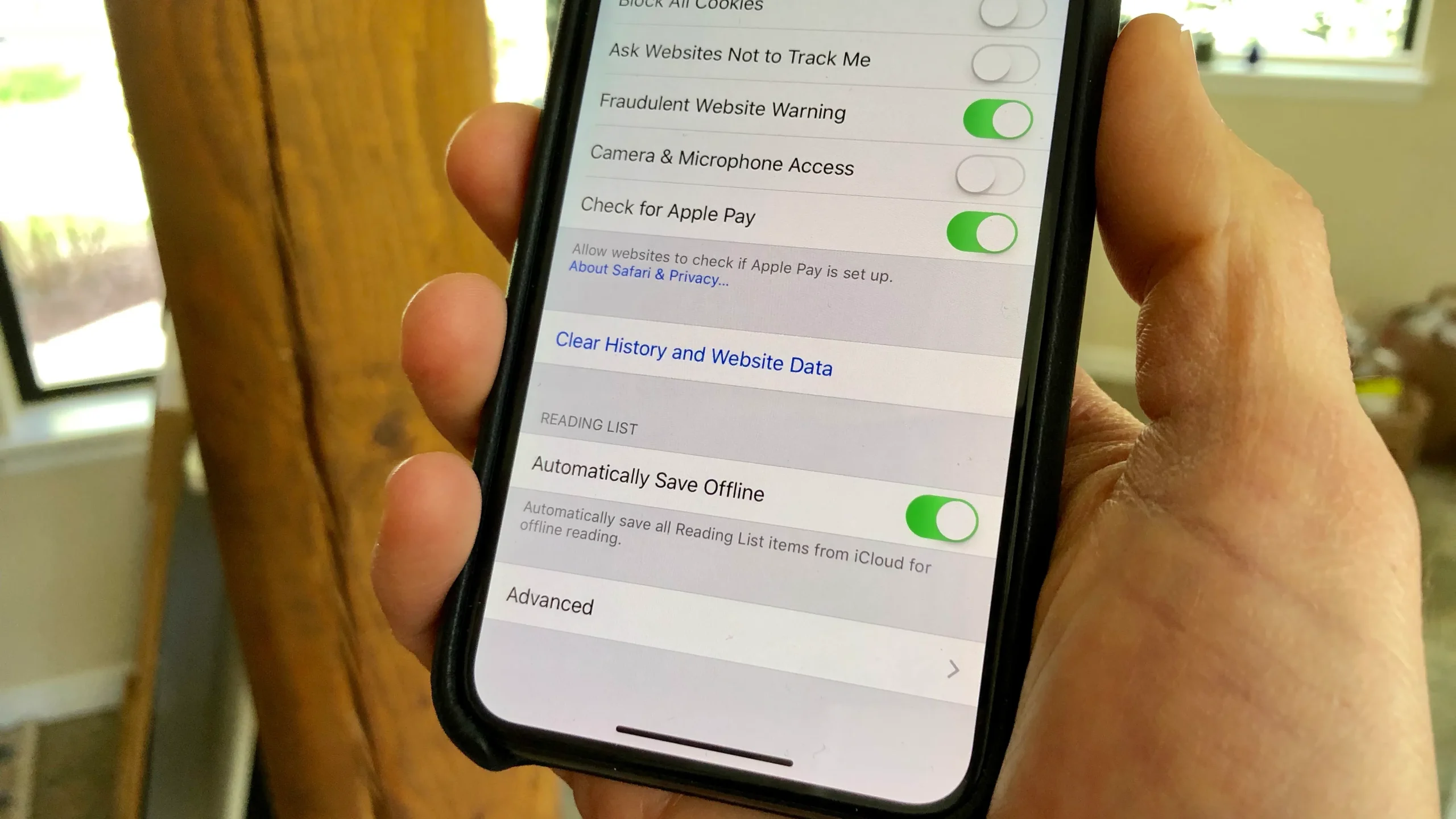
  • Scroll down again and tap Clear History and Website Data.
  • Confirm by tapping Clear History and Data.

This will delete your browsing history, cookies, and cached files.

2. Clear Cache in Third-Party Apps

Apps store cached data to improve performance, but sometimes this data can build up and slow your device down.

  • Open Settings.
  • Go to General.
  • Tap iPhone Storage.
  • Scroll through the list of apps and tap on an app taking up a lot of space.
  • If the app allows, you’ll see an option to Offload App or Delete App. Offloading the app will remove it but keep your data intact. Reinstalling the app can help refresh its cache.
  • Alternatively, deleting and reinstalling the app will clear its cache.

3. Restart Your iPhone

Restarting your device can help clear out temporary cache files stored by the system:

  • For iPhones with Face ID, press and hold the Volume Up and Side buttons together until the slider appears.
  • For iPhones with a Home button, press and hold the Power button until the slider appears.
  • Slide to power off, wait a few seconds, and then turn it back on.

Why You Should Clear Cache:

  • Improved Performance: Clearing cache can make your iPhone run faster by freeing up memory.
  • More Storage: Deleting cached files can free up a significant amount of storage.
  • Fix App Glitches: Sometimes apps behave strangely due to corrupted cache data. Clearing the cache can resolve these issues.
  • Enhanced Privacy: Cached files may contain personal information, so clearing them helps protect your privacy, especially when using shared or public networks.

Regularly clearing the cache keeps your iPhone operating smoothly and securely.

Free All-in-One Online Converter Launches with Expanded Features

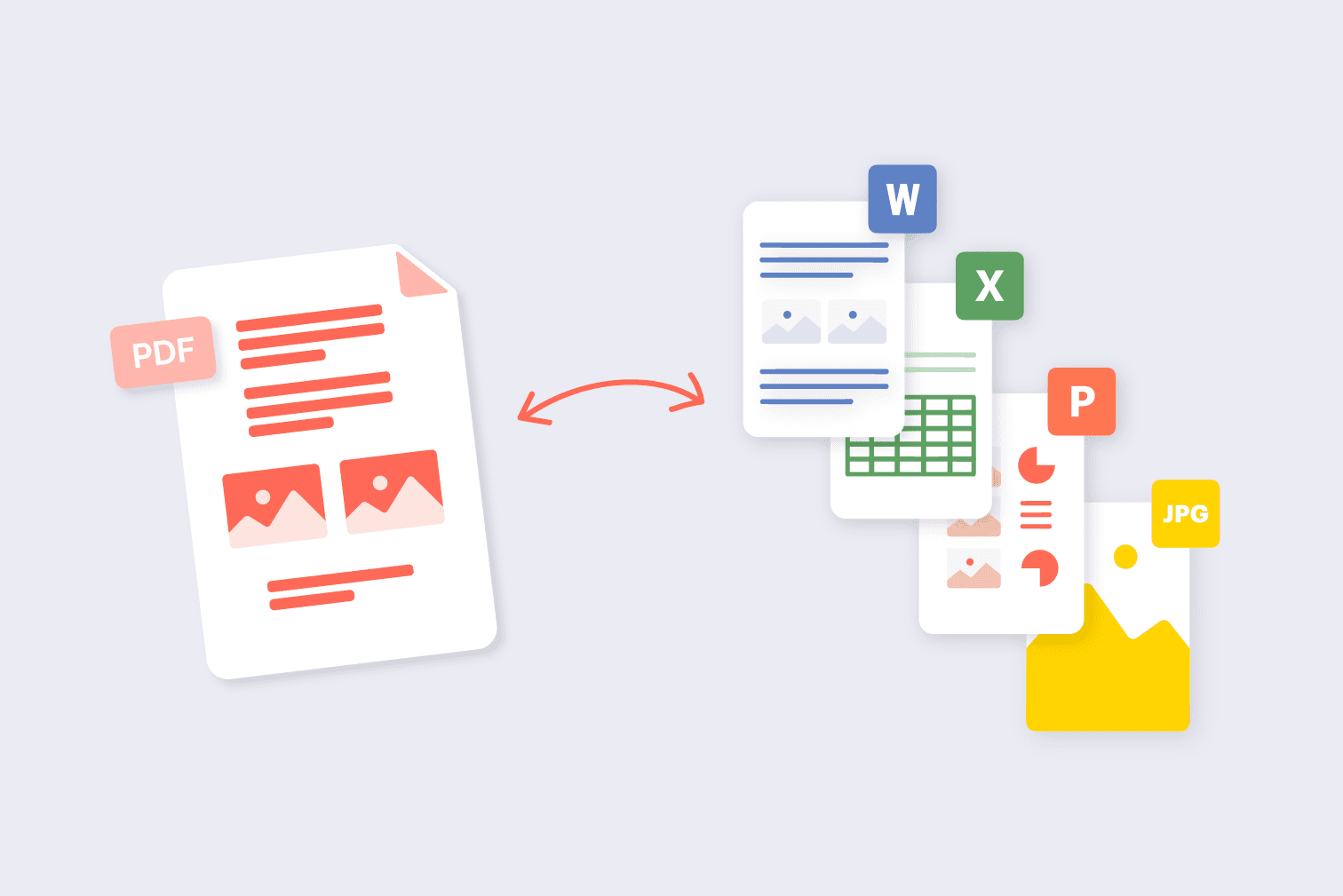
The New Free All-in-One Online Converter Tool, available at Online-Convert.com, offers a versatile solution for all your conversion needs. This user-friendly platform supports a wide range of file formats, including documents, images, audio, and video, allowing users to convert files effortlessly without needing to download any software. Its intuitive interface ensures that even those with minimal technical knowledge can perform conversions with ease.

In addition to its broad format support, the tool provides a variety of customization options. Users can adjust settings such as file quality, resolution, and encoding to tailor the output to their specific needs. This level of flexibility makes it a valuable resource for professionals and casual users alike, who require precise control over their file conversions.

The website is designed with convenience in mind, offering a seamless experience across different devices and operating systems. Whether you’re on a desktop, tablet, or smartphone, you can access the converter tool and perform conversions directly from your browser. This accessibility is further enhanced by the tool’s rapid processing times, which save users valuable time.

With its commitment to providing a comprehensive and efficient conversion service, the New Free All-in-One Online Converter Tool stands out as a go-to resource for handling various file conversion tasks. Its combination of wide format support, customization options, and user-friendly design makes it an essential tool for anyone needing reliable and efficient file conversion solutions.

Where To Download Windows ISO Legally

Windows ISO file is a DVD image or copy of the operating system, available on the internet for “free”. But Is It Legal & TRUSTWORTHY?

Windows users very often need an ISO file to legally install an operating system on their PC. Many of our friends don’t want to download Windows 10, 8.1, or 7 ISO from any torrent websites because the torrent file is not a trusted file.

Congratulations! You are in the right place. We will provide you a totally untouched Windows ISO file through which you can solve your problem.

Download Windows 10, 8.1, and 7 ISO legally

Microsoft always makes the latest and untouched ISO files available on its official website after releasing and updated version of Windows. Mostly people don’t know about this method to get a copy of fresh and latest Windows.

Get Windows 7 ISO file legally?

If you want to download Windows 7 ISO file legally you can get it from Windows 7 All In One ISO page or from the official Microsoft site, it’s up to you.

You need to enter a valid product key for your Windows 7 provided by Microsoft will let you download the Windows 7-ISO file easily. When you entered your key and verify, Microsoft will show you the 32-bit and 64-bit option to download.

After downloading the ISO file, you can burn the file to a DVD or create a bootable Windows 7 USB drive.

Windows 10 ISO Windows 8.1 ISO Windows 7 ISO XP

8 online dictionaries of value to students

Today we are giving information about 8 online dictionaries available online. 

Google Dictionary

An easy way for students to find the definition of any word online is Google Dictionary. To use this, first of all go to any browser and do Google search.

Now type ‘define’ in front of the word you want to know and click on the search button. Now you will see the definition of the word, examples of usage, synonyms and antonyms, origin of the word, translation, graph showing the use of the word over time and many other things.

Merriam Webster

When you search for a word on this website, you will see the meaning with pronunciation, synonyms and antonyms, examples of the word being used in sentences, articles using the word, history and etymology of the word.

Apart from this, grammar, confusion caused by the use of words, popular words will also appear on the website. For those who are interested in words, the website also features vocabulary tests, crossword games, spelling quizzes, etc.

power thesaurus

This website has a huge collection of synonyms and antonyms of the word. Besides, when you search any word here, the meaning and pronunciation of that word, proverbs related to that word, etc. appear.

In addition, you will also see the words that others are eating recently. You will also see a list of words that have become famous by many people.

McMillan Dictionary

This website provides various effects in terms of meaning, pronunciation, synonyms and antonyms, video, picture, sound when searching for any word.

The website has facilities for users to add words themselves, add usages of words etc.

In addition, various educational materials such as infographics, metaphors, jakes related to different languages ​​are also available.

collins dictionary

The meaning of words on this website, apart from usage, additional features such as; Materials for learning grammar, English dictionary, English-French dictionary, English-German dictionary, English-Hindi dictionary and other language dictionaries are also available.

Also, games and learning materials related to words are available.

ludwig

This is a suitable dictionary to look up these sentences. When searching for any word here, appropriate sentences used in various newspapers, journals, official documents, scientific articles, blogs etc. will appear.

Also, no matter what language you write in, this website automatically translates to English and shows the appropriate sentence. 

word reference

This is a website with multilingual and translation facility. This website also provides dictionaries of different languages.

Any word can be discussed and debated on this website. Where you will get answers to your queries or questions from experts in the respective languages.

Wet words

This website is suitable if you also want something visual while looking for the meaning of the word. This website uses any word like name; The visual shows the meaning, definition, usage, synonyms and antonyms, facts related to the word, etc.

This dictionary has identified itself as a modern dictionary of modern times. This website uses visuals to help students understand a word.

How to Stop Spam Email in Gmail, Here’s How

In Gmail, you must have got some spam message from any random ID every day. In addition, you may also receive newsletters and promotional emails from a variety of brands to which you have never subscribed. Your valuable time will be wasted in deleting such unwanted emails and spam messages. That’s why here we are telling you how to stop such unwanted messages or emails, so that you can save valuable time and keep your Gmail account inbox clean and tidy, as well as keep you away from any kind of phishing attack. 

Report Spam and Unsubscribe from Spam Emails

After logging into Gmail, select all the spam emails that you want to unsubscribe from. 
After that click on the ‘i’ icon given at the top, after which you will see the option of Report spam or Report spam and unsubscribe. 
Here, check the selected email id once again and then select the Report spam and unsubscribe option. You will not receive emails from these accounts once you enable it. 


Apply Filters to Detect Spam Emails

Open your Gmail account and click on the search box at the top. Here, type unsubscribe to list all promotional emails. 
Select all spam emails, but do not contain any emails or newsletters that are of any use to you. 
Now click on the three dots above and select Filter messages like these. 
Now click on the Create Filter option and choose whatever you want to do with these spam emails. For example, if you want such emails to be automatically deleted, you can click Create a filter and select the Delete option. 
Now you will get a popup informing that the filter has been created. In addition to deleting, you can also label such emails. 

Use a temporary email ID

When you share your Gmail ID on different sites, this ID goes to many third parties. In such a situation, your risk of getting many types of spam emails increases. Sometimes these spams seem quite valid and you can get caught in a phishing attack. 
In such a situation, instead of giving your primary Gmail ID, you can give a temporary ID. 
Websites like temp-mail.org provide you with a free temporary ID. You can use a temporary ID from any such site. 
This is how you can keep your primary Gmail account safe and spam-free.