Clearing your iPhone’s cache can free up storage, improve performance, and resolve issues like slow browsing or app crashes. Here’s how you can do it:
1. Clear Safari Cache
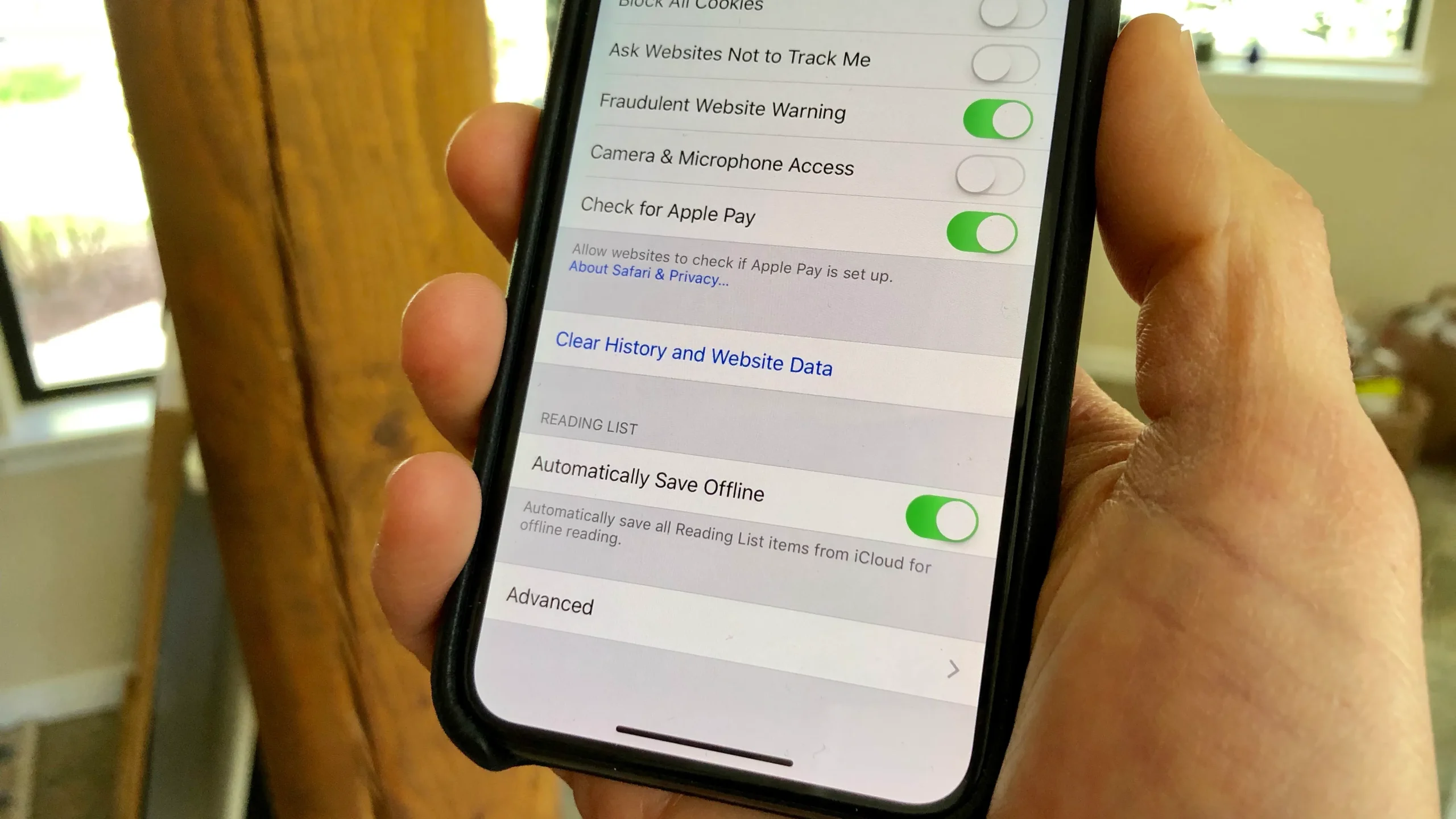
Safari, the default browser on iPhones, stores a lot of temporary data that can slow it down. Here’s how to clear its cache:
- Open Settings on your iPhone.
- Scroll down and tap Safari.
- Scroll down again and tap Clear History and Website Data.
- Confirm by tapping Clear History and Data.
This will delete your browsing history, cookies, and cached files.
2. Clear Cache in Third-Party Apps
Apps store cached data to improve performance, but sometimes this data can build up and slow your device down.
- Open Settings.
- Go to General.
- Tap iPhone Storage.
- Scroll through the list of apps and tap on an app taking up a lot of space.
- If the app allows, you’ll see an option to Offload App or Delete App. Offloading the app will remove it but keep your data intact. Reinstalling the app can help refresh its cache.
- Alternatively, deleting and reinstalling the app will clear its cache.
3. Restart Your iPhone
Restarting your device can help clear out temporary cache files stored by the system:
- For iPhones with Face ID, press and hold the Volume Up and Side buttons together until the slider appears.
- For iPhones with a Home button, press and hold the Power button until the slider appears.
- Slide to power off, wait a few seconds, and then turn it back on.
Why You Should Clear Cache:
- Improved Performance: Clearing cache can make your iPhone run faster by freeing up memory.
- More Storage: Deleting cached files can free up a significant amount of storage.
- Fix App Glitches: Sometimes apps behave strangely due to corrupted cache data. Clearing the cache can resolve these issues.
- Enhanced Privacy: Cached files may contain personal information, so clearing them helps protect your privacy, especially when using shared or public networks.
Regularly clearing the cache keeps your iPhone operating smoothly and securely.