
Create new year greeting card easily from mobile

E-cards play an important role in exchanging New Year wishes. When you see e-cards posted by various people on social media or sent to your inbox, you may want to make a similar card.

Today we are giving information on how to make a class e-card from a mobile phone. There are many such apps on the internet with the help of which we can make quality e-cards.

Here we are discussing about two suitable apps that will help you create e-cards easily and as per your wish. Information is given here about two apps that can be used to make e-cards using Nepali font.

Canva

Canva is such a platform, with the help of which we can create new year e-cards using attractive templates. Also, this platform has the facility to create e-cards in your own style.

This app is free. However, to use some special templates and fonts, you have to pay a fee. Download the app by clicking here for Android users and here for iOS users .

After downloading the app, prepare the e-card by following the procedure below.

– First of all open the app.

– Then go to the search bar above and search for ‘New Year Cards’.

– Then choose any template that suits you.

– You can make an e-card as shown in the template.

Canva can design as you want. However, the template may not have the design you are looking for. Therefore, you should know about the tools of the app to create the design you want.

Pixellab

Pixel Lab is an app that can be used to create classy posters and e-cards. It can also be used as Photoshop. Here’s how to go from installing the app to designing a card:

1. App and install fonts in the app

First of all, install the Pixel Lab app by going to this link for Android and this link for iOS.

If English letters are used in the paste you are going to create, then you don’t have to do anything, we can use the default fonts in the app.

However, if you want to use Nepali characters in the poster, you can install the font using the below-mentioned procedure:

To make such posters attractive, we have to use different attractive fonts. 

Go to Google and search Nepali Font Collection Zip File (Nepali Font Collection Zip File) and download the font.

After downloading the font, you need to extract it to the file manager on your smartphone. To extract, you need to find out which folder the zip file of the font you downloaded is in.

Most of the downloaded content on the phone is in the Downloads folder, so you can go there. If you tap on the zip file you downloaded, it will show you the option to extract.

In this way, the font can be extracted to a folder. After this process, the font has to be installed in Pixel Lab.

– To install the font in Pixel Lab, first open the app.

– After opening the app, there is an option written New Text. You tap on it.

-Then tap on the A icon below. Then many options appear above it. 

-If you move it to the left, you will see an option called Font.

-If you tap on the font, a new section will appear, in which you can see three other options.

-If you tap on My Font in the middle, you will see an empty section. Now we have to install the downloaded font in this section. 

– A search box appears below it. Two icons can be seen next to the search box. Out of that you have to choose the last option. 

– After this, the file manager option appears. There, select the font by going to the folder where you extracted the font earlier. Thus, after installing Font Pixel Lab, you can see many fonts in place of My Fonts. 

2. How to design

After the font installation process is over, let’s go to the poster design process. There are many things to consider while designing it.

First of all prepare the outline of the card you are going to make. This means that matters such as where to place the font on the card, and how to keep the background color should be taken care of.    

– First of all select the background color, for that you will see the options at the end of that page. Choose the previous option from the last one. After selecting that option, an option called color will appear, you can tap on it and select the color you need.

– After selecting the caller, go to the third option below. After that, an option called Shapes appears above. When you tap on it, a square box appears. Now you can adjust the size and color of the same box according to your needs.

– Make boxes of different colors like the poster we made.

– After this process is over you should pay attention to two other things; Where to put your photo and where to put the other font?

– If you want to remove the photo background of a photo that you want to keep, you can use a background remover site, such as Remove.Busy .

In this way, you can make a poster like the one shown in the photo from your phone app in a short time.
Where is your photo being used on the internet? Here’s how to find out

Where has our photo been used online? Or who are the people with a face like ours? You may also be bothered by these questions.

‘Reverse face search’ is such a method, which gives information about where photos like us or our own photos have been uploaded on the Internet.

Today we are giving information about such sites, with the help of which you can find out where your photos have been uploaded on the Internet.

google image search

You can search many things not only by putting text in Google, but also by photos. You can search by photo by going to Google’s search bar and clicking on the camera icon or directly by clicking here .

In this way, when searching for photo usage, you can get information about where the photo is uploaded, what the photo is related to.

Google often searches for photos that match the photos you upload. In this way, you can find out where your photo has been uploaded on the Internet. 

pimiez

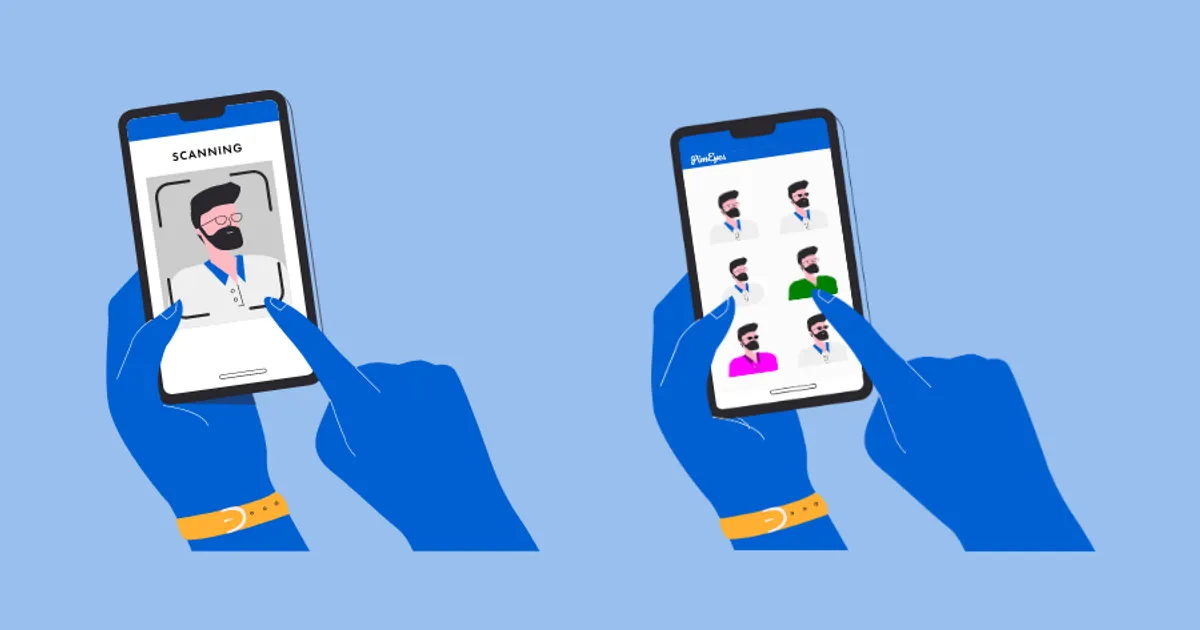
There is a website called ‘PMEyes’ on the internet, through which you can find out where your photos have been uploaded on the internet. 

Specifically, based on the same photo provided by the user, this platform identifies other photos using ‘facial recognition’.

A computer algorithm shows faces that match your photo on online portals, social networks or any other platform. From where you can find out where your photo has been used. 

This platform can be used up to three times for free. Then you have to pay for this platform.

Even if you use it for free, you can see where your photos have been taken. However, not all links on the site are visible. Thus, a fee must be paid to go to the link shown there.

Follow the procedure below to identify photos uploaded to the Internet by PMEyes:

– First of all go to PimEyes official website by clicking here .

– Then click on the ‘Upload a Photo’ section on the PimEyes main page.

– After doing this, select the photo you want to search from the gallery.

– After selecting the photo, click on the ‘Terms and Conditions’ and ‘Privacy Policy’ boxes and click on the ‘Continue’ box.

– After doing this, it shows a face that matches your face and a photo of your own face.

In this way you can search photos of different people up to three times for free. Using this platform for free may not give accurate results. Because deep search or safe search options are not available when using free. 

facecheck id

‘Facecheck ID’ is such a platform, which uses a facial recognition search engine powered by AI. From this, you can identify which online account people have, where their photos are uploaded.

You agree that if you find the photo you want to find on this platform on any platform, you will not blackmail the information or hurt the person. After that, you can get information about where the photo has been uploaded.

tiny eyes

TinyEyes’ reverse image search is almost like Google’s image search. You can search for images by uploading a photo or pasting a photo’s URL link.

However, not all the photos here will suit you. For that, your photo must be uploaded on a publicly available platform.

betaforce

Like other platforms, Betaforce is also a website, with the help of which you can identify where the photo you are looking for is available online. Photos can be searched by uploading photos on this platform or by directly pasting the link.

Apart from these, there are many platforms that help to identify where a photo has been uploaded on the Internet. Under this, you can search online images from platforms like

Ncell’s Volte service now on iPhone too, 2GB data bonus when upgrading to e-SIM

With the new year 2080, Ncell Asiata has launched Voice over Long Term Evolution (Volte) service for iPhone as well. Earlier, the company has launched the Volte service on the Android platform.

“Volte is a new technology in the field of telecommunication services, which provides HD and fast connected voice call services. You can make quality voice calls using the 4G network on Volte. Customers can now enjoy high-quality voice calls and data services at the same time while calling on the 4G network at normal call charges,” the statement issued by the company said.

iPhone users who subscribe to Volte service will get 100 minutes of on-net Volte talk time valid for 28 days. Ncell customers using iPhone 8 and later iPhone series are eligible for Volte service and 100 minutes of bonus talk time. According to the company, eligible customers can dial Estrix 17201 to get the Volte service and receive the bonus.

Along with Volte, Ncell has also introduced another plan for customers using iPhone on its network. Under this, customers who upgrade their physical SIM to e-SIM will get 2GB bonus data valid for seven days.

According to the company, the bonus data is applicable for customers who have purchased iPhone through the official seller of iPhone in Nepal.

iPhone users can upgrade their SIM to e-SIM by dialing 17125. For this, the customer should type his citizenship number, email address and send an SMS to 17125.

Before activating the e-SIM, the customer receives a call from the Ncell representative for customer identification. There is no charge for sending this SMS and for SIM upgrade. Other customers can get a new e-SIM for free from their nearest Ncell.

All Ncell customers across Nepal who have Ncell’s 4G network can take advantage of the Volte service. To benefit from this service, the customer needs to turn on the 4G setting on his Volte enabled mobile set and must be on the 4G network.

IME Pay 100% Cashback Offer in New Year

The promotion “2080, 100% Happiness with IME Pay” has been made available by IME Pay in honor of the New Year 2080.

The company claims that 10 lucky customers who utilize IME Pay’s numerous services each week throughout the promotional period, which runs from spring to April, will receive 100% payback.

Customers have been instructed to conduct business using Visa cards, P2P, QR, flight ticket purchases, remittances, and other services through IME Pay in order to take advantage of the offer.

According to the business, the purpose of this promotion is to persuade clients to use IME Pay to conveniently make electronic payments.