How to Clear Cache on Windows 11

Clearing the cache in Windows 11 can help improve system performance and free up storage space. Here’s how to clear various types of cache on your Windows 11 computer:

1. Clear Temporary Files Cache

Windows stores temporary files that can accumulate and slow down your system. You can clear them using the Settings app:

  • Open Settings by pressing Windows + I.
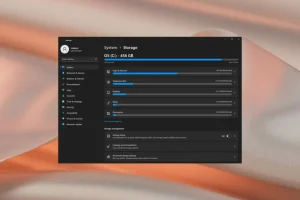
  • Navigate to System and click on Storage.
  • Under Storage management, click Temporary files.
  • Windows will scan for temporary files. Once scanned, select the file types you want to delete (e.g., Temporary files, Recycle Bin).
  • Click Remove files to clear the selected cache.

2. Clear DNS Cache

Clearing the DNS cache can fix internet connectivity problems caused by outdated or corrupted entries:

  • Open Command Prompt as an administrator. Search for “Command Prompt” in the Start menu, right-click it, and select Run as administrator.
  • Type the following command and press Enter:
    ipconfig /flushdns
  • You’ll receive a message saying the DNS cache was successfully flushed.

3. Clear Windows Store Cache

If you experience issues with the Microsoft Store, clearing its cache might resolve the problem:

  • Press Windows + R to open the Run dialog box.
  • Type wsreset.exe and hit Enter.
  • A blank Command Prompt window will appear, and after a few seconds, the Microsoft Store will open, indicating the cache has been cleared.

4. Clear Location Cache

Windows 11 stores location history, which you can clear to protect your privacy:

  • Open Settings and go to Privacy & Security.
  • Scroll down and click Location.
  • Under Location history, click Clear to delete the stored location data.

5. Clear Browser Cache

To clear cached data in Microsoft Edge (or another browser):

  • Open Microsoft Edge.
  • Click the three-dot menu in the upper-right corner and select Settings.
  • Go to Privacy, Search, and Services.
  • Under the Clear browsing data section, click Choose what to clear.
  • Select the types of data (like cached images and files) and click Clear now.

6. Clear System Cache Using Disk Cleanup

Disk Cleanup is a built-in Windows utility to remove unnecessary files:

  • Press Windows + S and type Disk Cleanup in the search bar. Open the app.
  • Select the drive you want to clean (usually C:).
  • Disk Cleanup will scan and present a list of file types to delete, such as Temporary files and Thumbnails.
  • Select the file types you wish to remove and click OK.
  • Click Delete Files to confirm.

7. Clear Prefetch Cache

Windows uses prefetch files to load programs faster, but these files can become cluttered:

  • Open the Run dialog by pressing Windows + R.
  • Type prefetch and hit Enter.
  • Select all the files in the folder (press Ctrl + A) and delete them.

8. Clear Software Distribution Folder

This folder stores Windows Update files and can grow large over time:

  • Open File Explorer and navigate to C:\Windows\SoftwareDistribution.
  • Select all the files and folders and delete them.

Why You Should Clear Cache on Windows 11:

  • Improved Performance: Cached files can slow down your system over time.
  • Free Up Storage Space: Cache files can accumulate and take up significant disk space.
  • Fix Glitches: Corrupted cache can cause apps or system functions to misbehave.
  • Enhanced Privacy: Clearing cached data ensures sensitive information doesn’t linger on your system.

Clearing cache regularly can keep your Windows 11 system running smoothly and efficiently.

How to Clear the Cache on Your iPhone (and Why You Should)

Clearing your iPhone’s cache can free up storage, improve performance, and resolve issues like slow browsing or app crashes. Here’s how you can do it:

1. Clear Safari Cache

Safari, the default browser on iPhones, stores a lot of temporary data that can slow it down. Here’s how to clear its cache:

  • Open Settings on your iPhone.
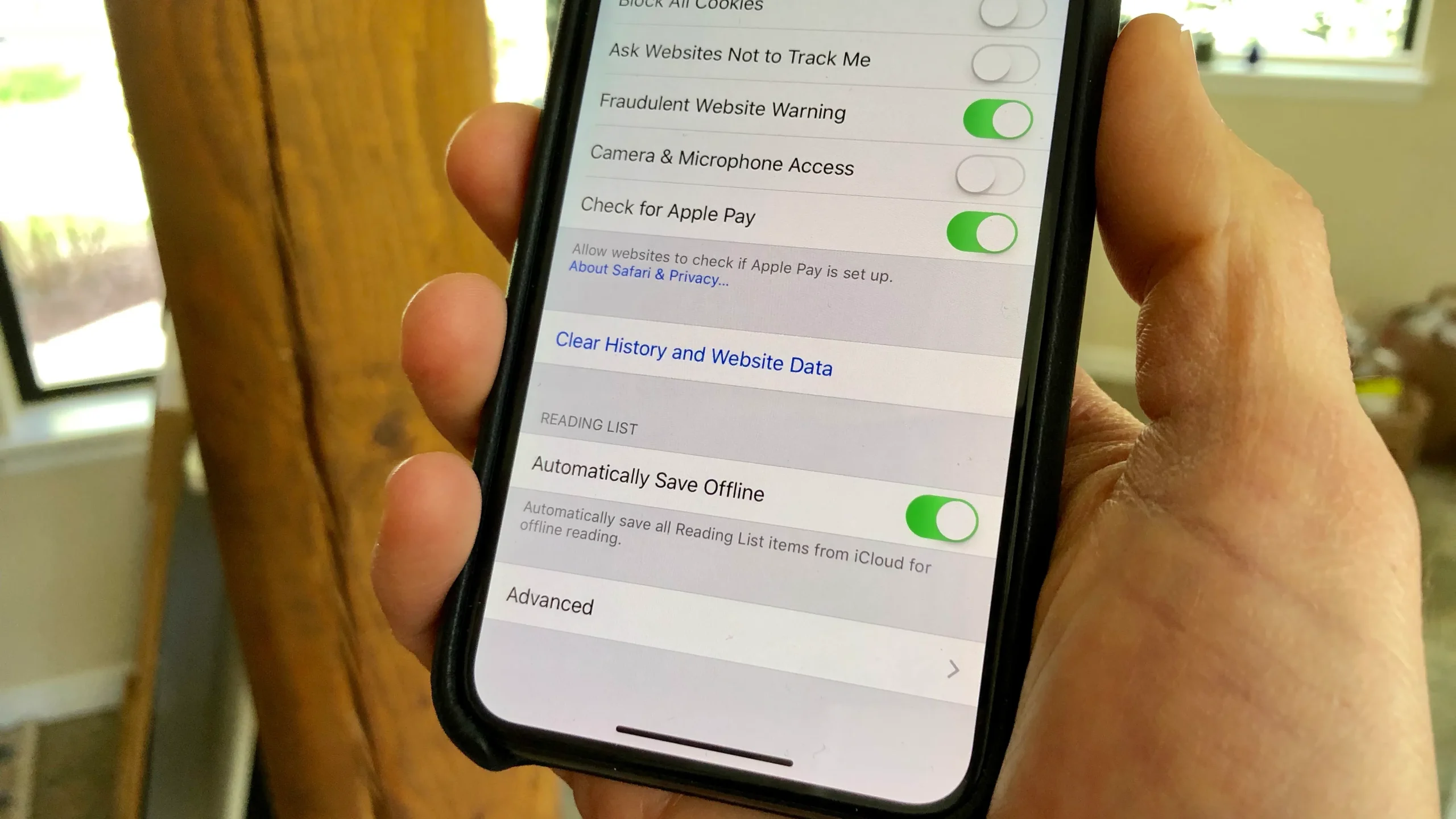
  • Scroll down and tap Safari.
  • Scroll down again and tap Clear History and Website Data.
  • Confirm by tapping Clear History and Data.

This will delete your browsing history, cookies, and cached files.

2. Clear Cache in Third-Party Apps

Apps store cached data to improve performance, but sometimes this data can build up and slow your device down.

  • Open Settings.
  • Go to General.
  • Tap iPhone Storage.
  • Scroll through the list of apps and tap on an app taking up a lot of space.
  • If the app allows, you’ll see an option to Offload App or Delete App. Offloading the app will remove it but keep your data intact. Reinstalling the app can help refresh its cache.
  • Alternatively, deleting and reinstalling the app will clear its cache.

3. Restart Your iPhone

Restarting your device can help clear out temporary cache files stored by the system:

  • For iPhones with Face ID, press and hold the Volume Up and Side buttons together until the slider appears.
  • For iPhones with a Home button, press and hold the Power button until the slider appears.
  • Slide to power off, wait a few seconds, and then turn it back on.

Why You Should Clear Cache:

  • Improved Performance: Clearing cache can make your iPhone run faster by freeing up memory.
  • More Storage: Deleting cached files can free up a significant amount of storage.
  • Fix App Glitches: Sometimes apps behave strangely due to corrupted cache data. Clearing the cache can resolve these issues.
  • Enhanced Privacy: Cached files may contain personal information, so clearing them helps protect your privacy, especially when using shared or public networks.

Regularly clearing the cache keeps your iPhone operating smoothly and securely.

Free All-in-One Online Converter Launches with Expanded Features

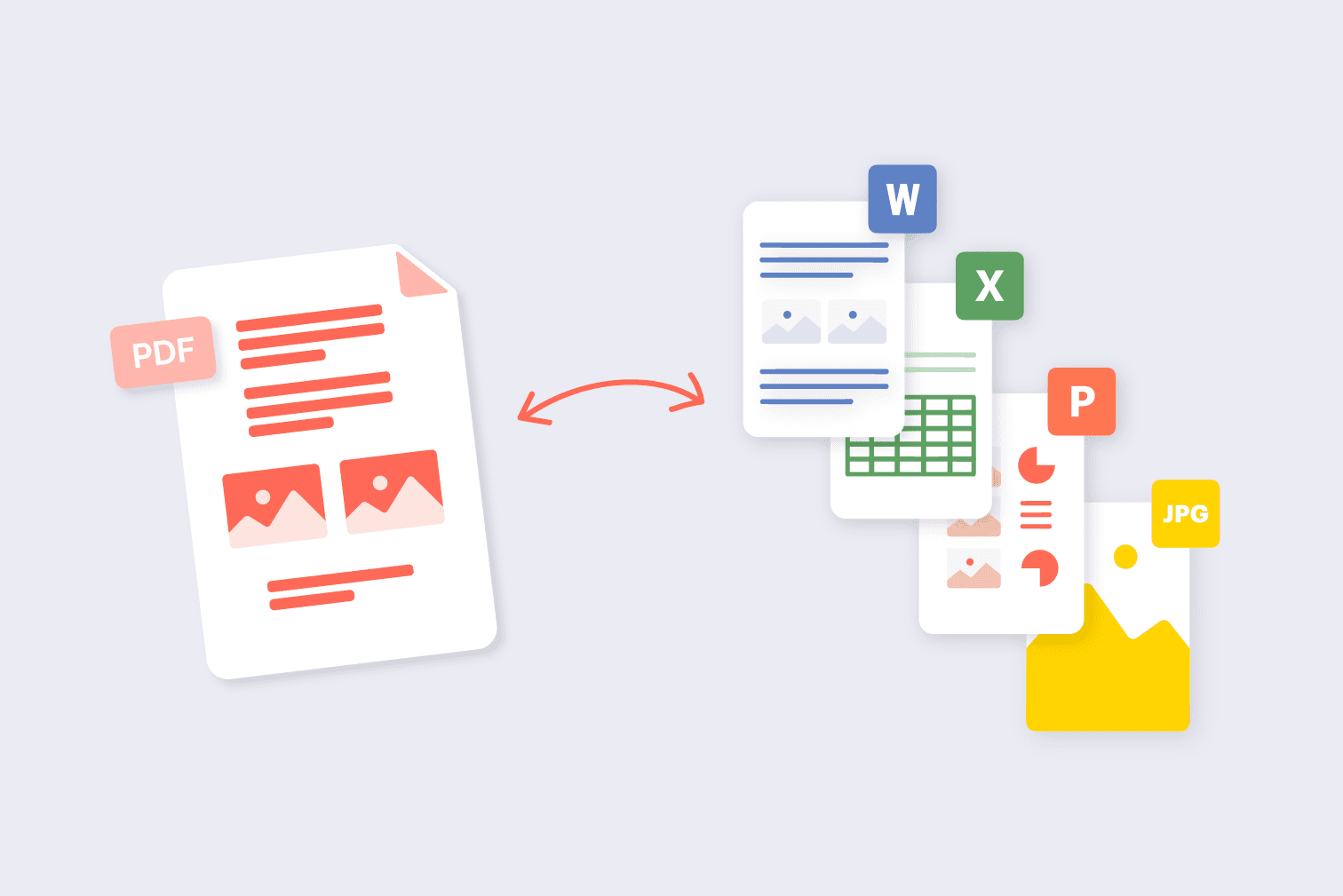
The New Free All-in-One Online Converter Tool, available at Online-Convert.com, offers a versatile solution for all your conversion needs. This user-friendly platform supports a wide range of file formats, including documents, images, audio, and video, allowing users to convert files effortlessly without needing to download any software. Its intuitive interface ensures that even those with minimal technical knowledge can perform conversions with ease.

In addition to its broad format support, the tool provides a variety of customization options. Users can adjust settings such as file quality, resolution, and encoding to tailor the output to their specific needs. This level of flexibility makes it a valuable resource for professionals and casual users alike, who require precise control over their file conversions.

The website is designed with convenience in mind, offering a seamless experience across different devices and operating systems. Whether you’re on a desktop, tablet, or smartphone, you can access the converter tool and perform conversions directly from your browser. This accessibility is further enhanced by the tool’s rapid processing times, which save users valuable time.

With its commitment to providing a comprehensive and efficient conversion service, the New Free All-in-One Online Converter Tool stands out as a go-to resource for handling various file conversion tasks. Its combination of wide format support, customization options, and user-friendly design makes it an essential tool for anyone needing reliable and efficient file conversion solutions.