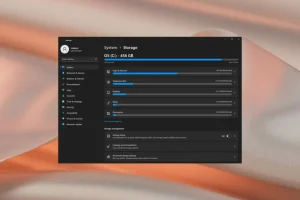
Clearing the cache in Windows 11 can help improve system performance and free up storage space. Here’s how to clear various types of cache on your Windows 11 computer:
1. Clear Temporary Files Cache
Windows stores temporary files that can accumulate and slow down your system. You can clear them using the Settings app:
- Open Settings by pressing Windows + I.
- Navigate to System and click on Storage.
- Under Storage management, click Temporary files.
- Windows will scan for temporary files. Once scanned, select the file types you want to delete (e.g., Temporary files, Recycle Bin).
- Click Remove files to clear the selected cache.
2. Clear DNS Cache
Clearing the DNS cache can fix internet connectivity problems caused by outdated or corrupted entries:
- Open Command Prompt as an administrator. Search for “Command Prompt” in the Start menu, right-click it, and select Run as administrator.
- Type the following command and press Enter:
ipconfig /flushdns
- You’ll receive a message saying the DNS cache was successfully flushed.
3. Clear Windows Store Cache
If you experience issues with the Microsoft Store, clearing its cache might resolve the problem:
- Press Windows + R to open the Run dialog box.
- Type wsreset.exe and hit Enter.
- A blank Command Prompt window will appear, and after a few seconds, the Microsoft Store will open, indicating the cache has been cleared.
4. Clear Location Cache
Windows 11 stores location history, which you can clear to protect your privacy:
- Open Settings and go to Privacy & Security.
- Scroll down and click Location.
- Under Location history, click Clear to delete the stored location data.
5. Clear Browser Cache
To clear cached data in Microsoft Edge (or another browser):
- Open Microsoft Edge.
- Click the three-dot menu in the upper-right corner and select Settings.
- Go to Privacy, Search, and Services.
- Under the Clear browsing data section, click Choose what to clear.
- Select the types of data (like cached images and files) and click Clear now.
6. Clear System Cache Using Disk Cleanup
Disk Cleanup is a built-in Windows utility to remove unnecessary files:
- Press Windows + S and type Disk Cleanup in the search bar. Open the app.
- Select the drive you want to clean (usually C:).
- Disk Cleanup will scan and present a list of file types to delete, such as Temporary files and Thumbnails.
- Select the file types you wish to remove and click OK.
- Click Delete Files to confirm.
7. Clear Prefetch Cache
Windows uses prefetch files to load programs faster, but these files can become cluttered:
- Open the Run dialog by pressing Windows + R.
- Type prefetch and hit Enter.
- Select all the files in the folder (press Ctrl + A) and delete them.
8. Clear Software Distribution Folder
This folder stores Windows Update files and can grow large over time:
- Open File Explorer and navigate to
C:\Windows\SoftwareDistribution. - Select all the files and folders and delete them.
Why You Should Clear Cache on Windows 11:
- Improved Performance: Cached files can slow down your system over time.
- Free Up Storage Space: Cache files can accumulate and take up significant disk space.
- Fix Glitches: Corrupted cache can cause apps or system functions to misbehave.
- Enhanced Privacy: Clearing cached data ensures sensitive information doesn’t linger on your system.
Clearing cache regularly can keep your Windows 11 system running smoothly and efficiently.